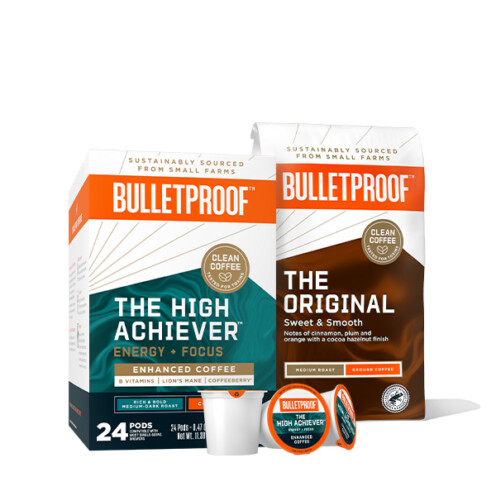
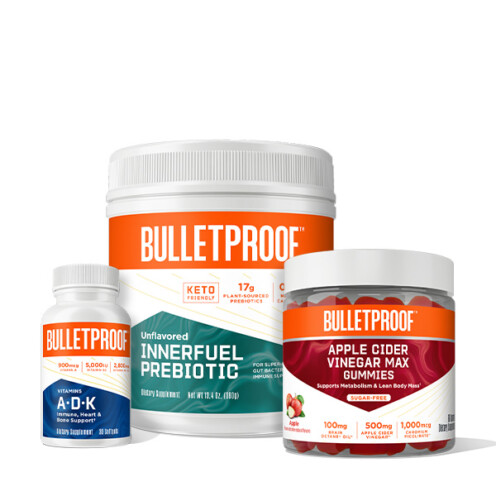
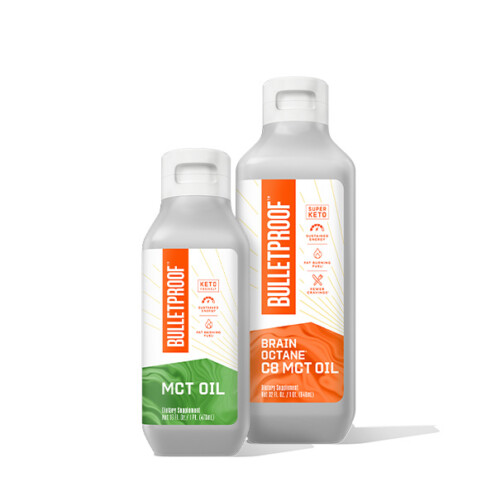
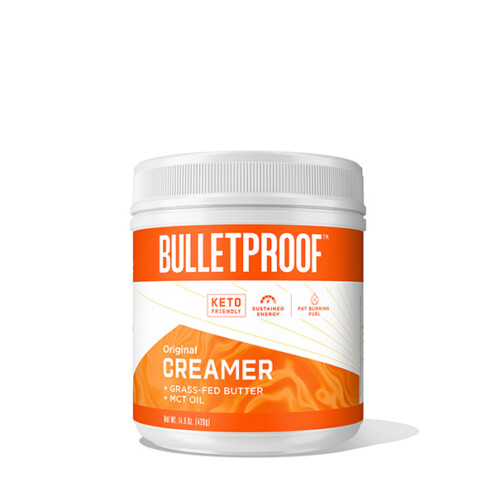
Discover what better feels like with the convenience of hassle-free, scheduled deliveries that guarantee you’ll never be without your Bulletproof favorites.
To avoid any future subscription charges, cancellation must occur 48 hours prior to your next ship date.
First, login to your Bulletproof.com account and select 'My Subscriptions.' From there, you will be taken to your subscription dashboard.
Once in the dashboard, locate the subscription product you wish to cancel. Click 'More' located to the far right of the options at the bottom of your subscription listing. Select 'Cancel'.
A pop-up will appear confirming your choice to cancel. Select 'Confirm' and a success message will shortly appear letting you know the subscription has been cancelled.
First, login to your Bulletproof.com account and select 'My Subscriptions.' From there, you will be taken to your subscription dashboard.
Locate the subscription product(s) you wish to update and select 'More' located to the far right of the options at the bottom of your subscription listing. Select 'Edit Frequency'.
First, login to your Bulletproof.com account and select 'My Subscriptions.' From there, you will be taken to your subscription dashboard.
Locate the subscription product(s) you wish to update and select 'Next Order Date'.
You can pause your subscription for a maximum of 3 months and reactivate at any time. Pausing means you’ll still have access to all of your subscription perks.
First, login to your Bulletproof.com account and select 'My Subscriptions.' From there, you will be taken to your subscription dashboard.
Locate the subscription you wish to pause and select 'More' located to the far right of the options at the bottom of your subscription listing. Select 'Pause'.
First login to your Bulletproof.com account and navigate to 'My Subscriptions.' Find the subscription that you are updating the payment method for, then alongside the Billing section, click 'Edit'.